
How to manage wholesale customers
Add and edit customers, review applications, and manage approval status and registration-form tags.
1. Open Customer Management
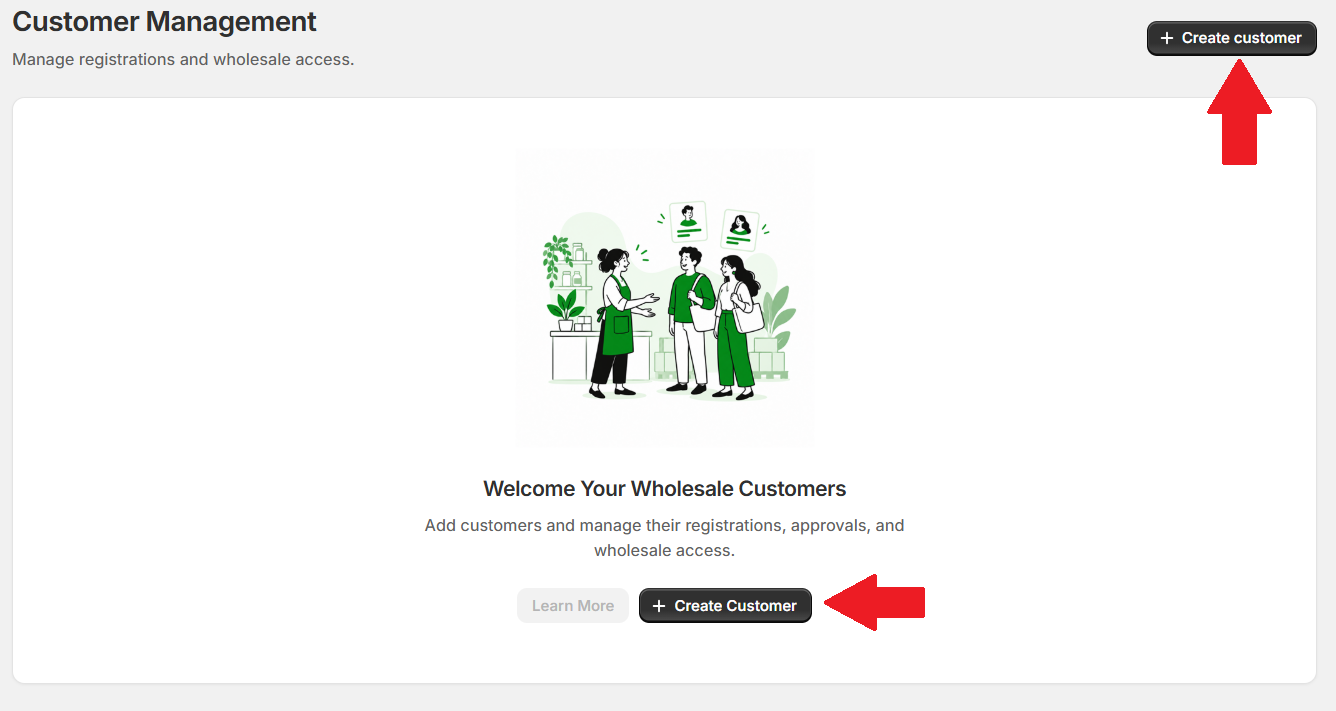
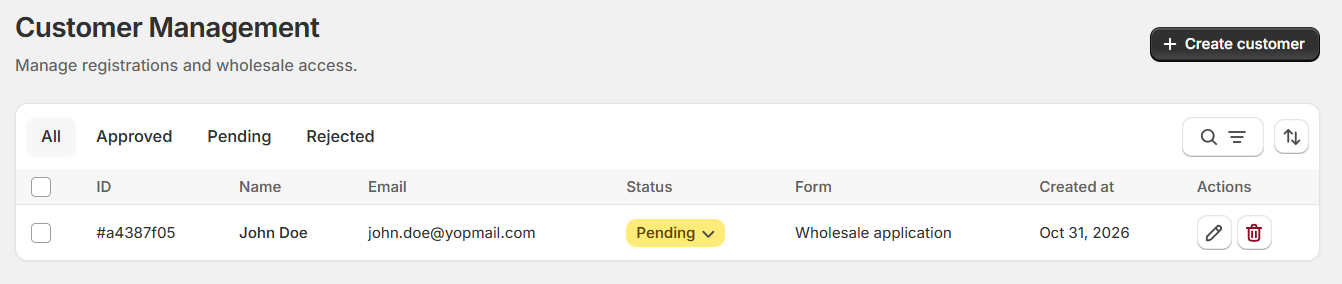
In Lumi, open Customer Management. Customers appear here when they apply through a registration form. You can also add a customer manually by clicking Create customer.
2. Select a registration form
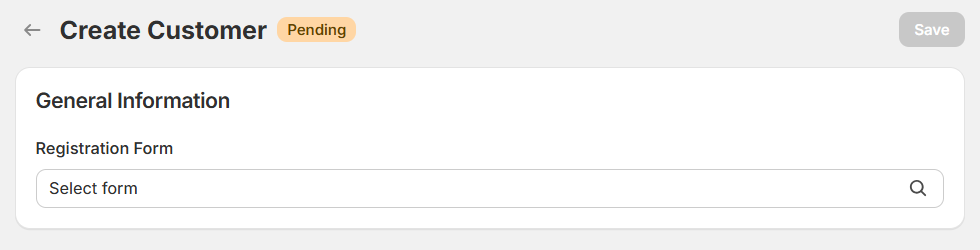
When creating a customer manually, click Select form under General Information.
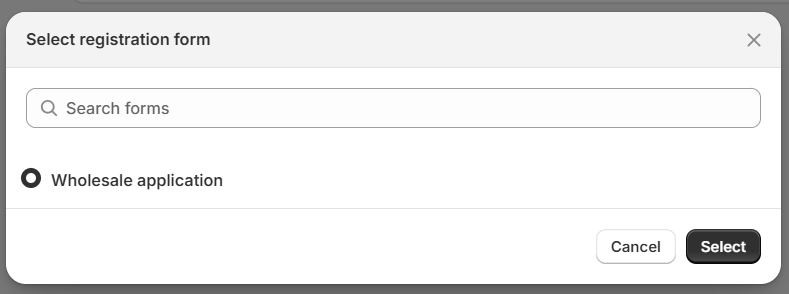
Choose a registration form, then click Select.
3. Enter customer details and save
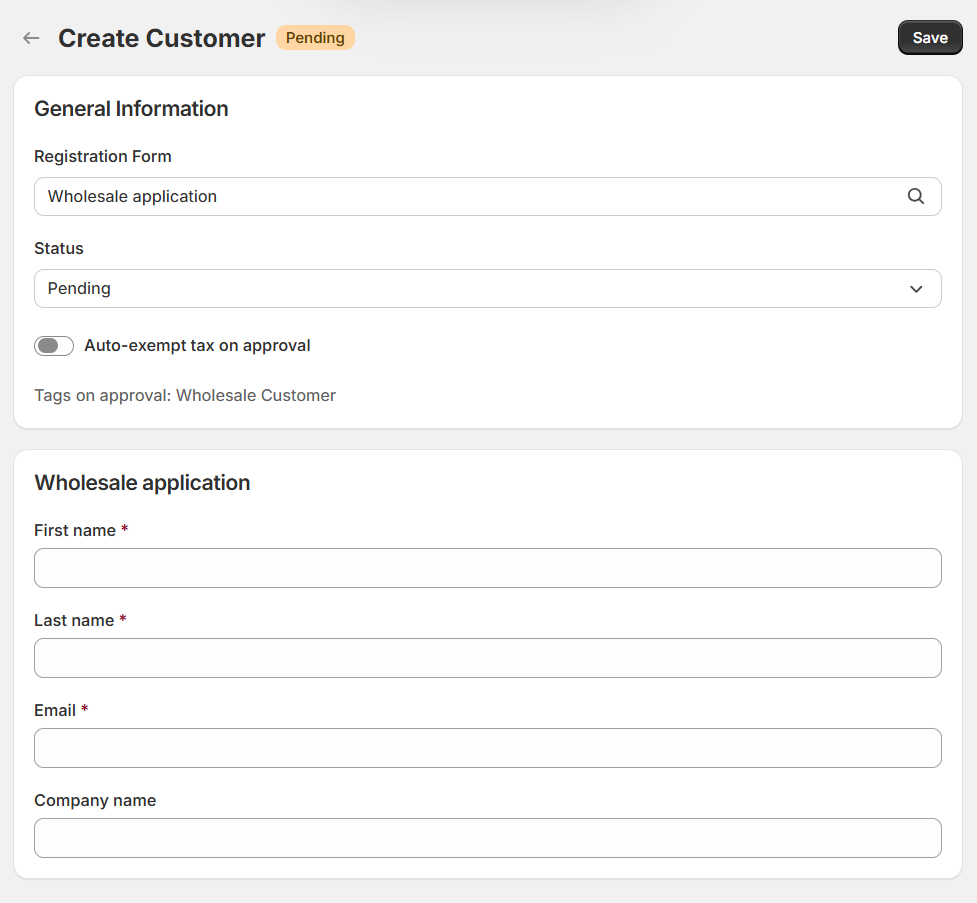
Complete the fields from the selected form. Fields marked with an asterisk are required.
- Status: choose Pending, Approved, or Rejected.
- Auto-exempt tax on approval: enable this if the customer should become tax-exempt when approved.
- Tags on approval: shows the customer tags configured in the selected registration form.
Click Save to create the customer.
4. Manage customers and approvals
Use the All, Approved, Pending, and Rejected tabs to filter customers.
- Change status: use the dropdown in the Status column.
- Edit: click the pencil icon, update the customer’s details, then click Save.
- Delete: click the trash icon to delete the customer entry.
How status affects customer tags
- Approved: applies the tags configured in the customer’s registration form.
- Changed from Approved to Pending or Rejected, or deleted: removes the previously applied approval tags.