
How to create a tag rule
Automatically add or remove customer and order tags when an event matches your conditions.
1. Create a tag rule
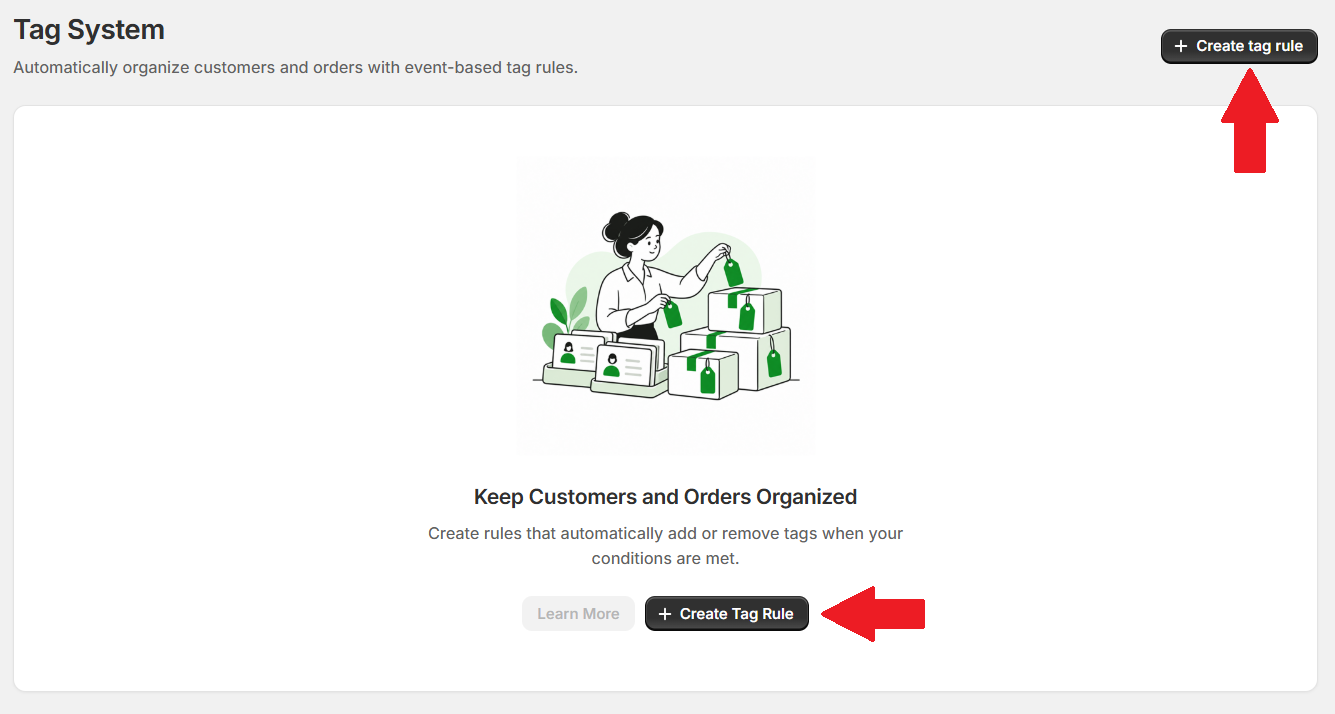
In Lumi, open Tag System and click Create tag rule.
2. Enter the general information
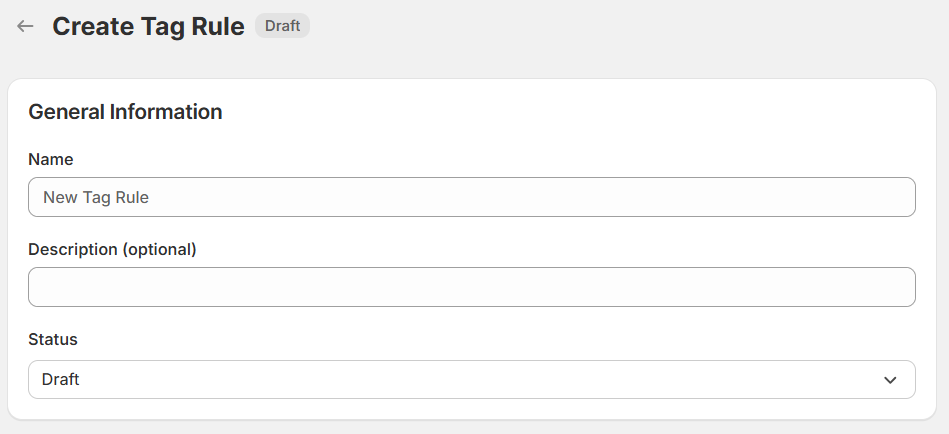
Enter a Name to identify the rule, such as Large order tagging. Use the optional Description to explain its purpose, such as “Add a review tag to orders worth 500 or more.”
Choose a Status:
- Draft: saves the rule without publishing it.
- Active: saves and publishes the rule. Any schedule you set still applies.
3. Choose a trigger event
Under Run this rule when, select the event that starts the rule:
- Customer created: check a newly created customer.
- Order created: check a newly placed order.
- Order paid: check an order when it is paid.
- Order fulfilled: check an order when it is fulfilled.
- Order cancelled: check an order when it is cancelled.
The example uses Order created, so Lumi checks the conditions when an order is created.

For Customer created, use Apply to Registration form Select registration form to choose the form. This event offers customer-specific conditions and actions.
4. Set the tag conditions
Build a condition
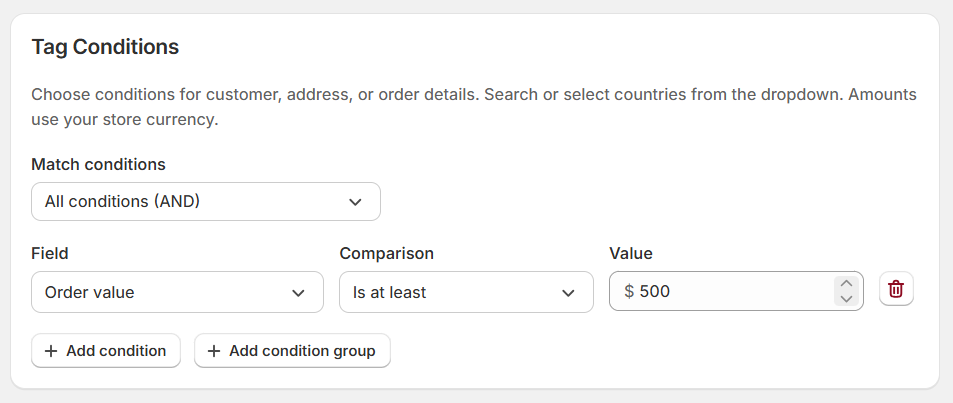
Each condition checks one detail:
- Field: choose the detail to check, such as Order value.
- Comparison: choose how to check it, such as Is at least.
- Value: enter or select what to match, such as 500.
The example uses Order value Is at least 500. It matches orders worth 500 or more in your store currency, including orders worth exactly 500.
Available fields depend on the trigger. Customer created supports approval status, name, and email. Order events also offer customer tags, spending and order counts, billing and shipping addresses, and order details such as value, quantity, and product ID / SKU. Comparisons and value inputs change with the selected field.
Combine conditions
Click Add condition to add another check, then choose Match conditions:
- All conditions (AND): every condition must match.
- Any conditions (OR): at least one condition must match.
For example, combine Order value is at least 500 with Order quantity is at least 10:
- With AND, the order must meet both thresholds.
- With OR, either threshold is enough.
Use Add condition group when part of your rule needs its own AND/OR setting. For example, require an order value of at least 500 AND a group where the shipping country is either Canada OR the United States. Set the outer match to All conditions, and the country group to Any conditions.
Use the trash icon to remove an unwanted condition or group.
5. Choose the actions
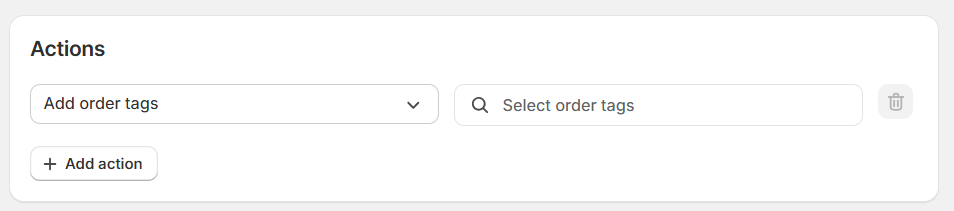
Actions run when the selected event occurs and the conditions match. Choose the action and the tags it should affect:
- Add order tags / Remove order tags: update tags on the order.
- Add customer tags / Remove customer tags: update tags on the customer.
Click Select order tags or Select customer tags, choose your tags, then click Select. For the order-value example, use Add order tags and choose a tag such as Review order.
Use Add action to make more than one change. For example, a rule can add a customer tag for a new customer tier and remove a tag for the previous tier.
Customer created only offers customer tag actions. For order events, customer actions are skipped if a guest order has no customer attached. If matching rules disagree about a tag, the newest rule takes precedence.
6. Set a schedule
Under Start/End Date, select None to run the rule as soon as it is saved as Active, with no end date.
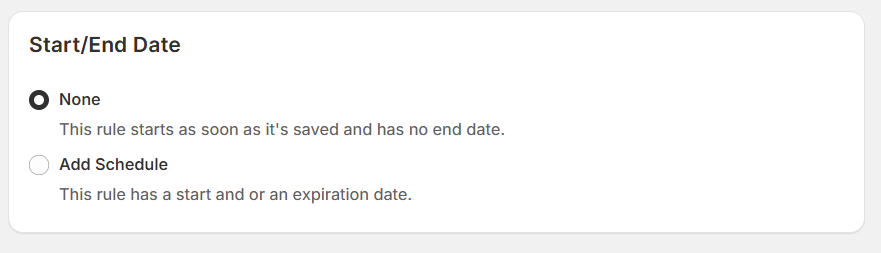
To limit when the rule runs, choose Add Schedule:
- Start Date: set when the rule becomes active.
- End Date: set when the rule stops running.
Use the time zone shown in the app. You can set a start date, an end date, or both.
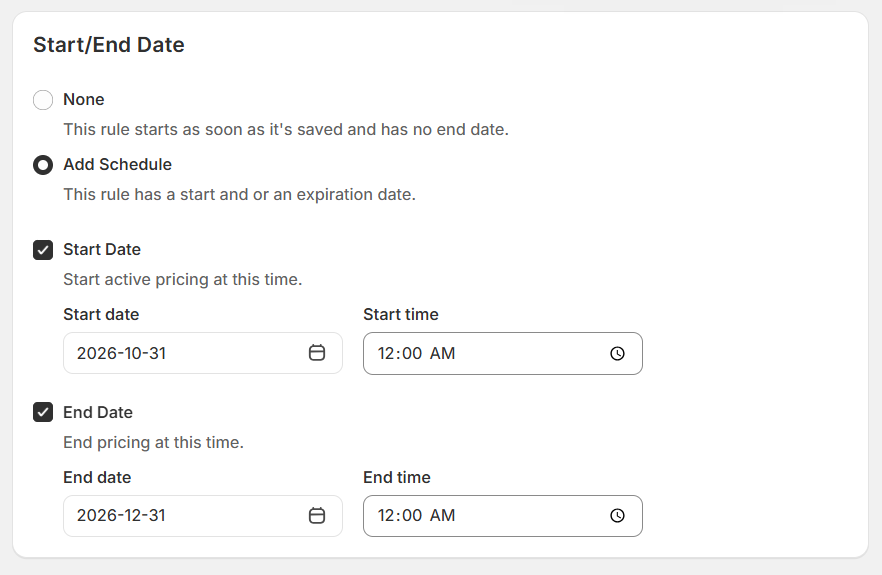
Ending a rule or changing it to Draft stops it from processing new events; it does not undo tags already applied.
7. Save the rule
Click Save to keep your changes. An Active rule runs when its selected event occurs and its conditions and schedule match.