
How to customize order limits
Style order limit guidance and warnings, and translate the messages customers see.
1. Open Customization
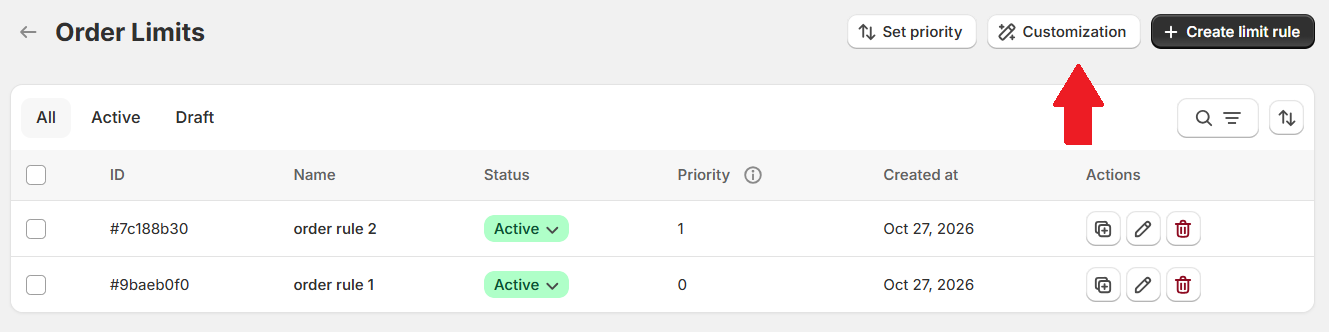
Go to Order Management Order Limits, then select Customization above the rules list.
The editor has two tabs: Design and Translation.
2. Choose guidance and warning colors
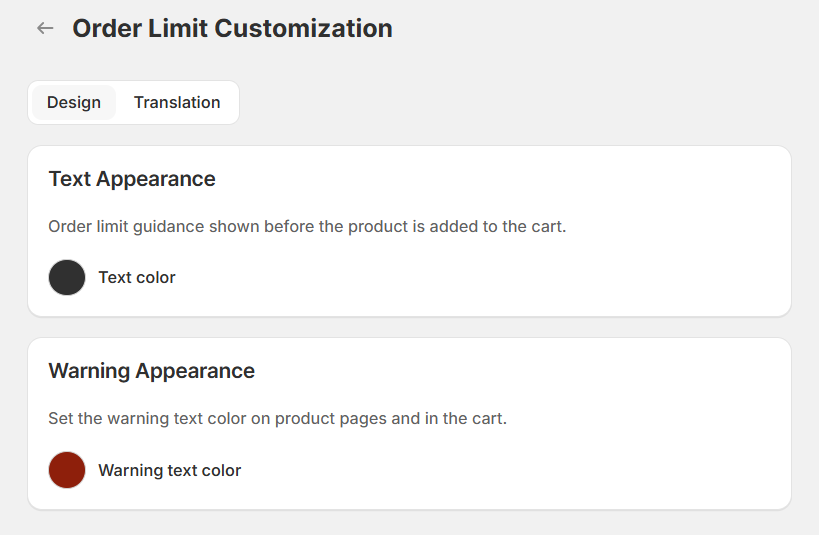
Open Design to style the text customers see.
Text Appearance
Use Text color to set the color of order limit guidance shown before a product is added to the cart.
Warning Appearance
Use Warning text color to set the color of warning messages on product pages and in the cart.
Choose colors that are easy to read against your storefront background. The example uses dark gray for guidance and dark red for warnings.
3. Edit and translate messages
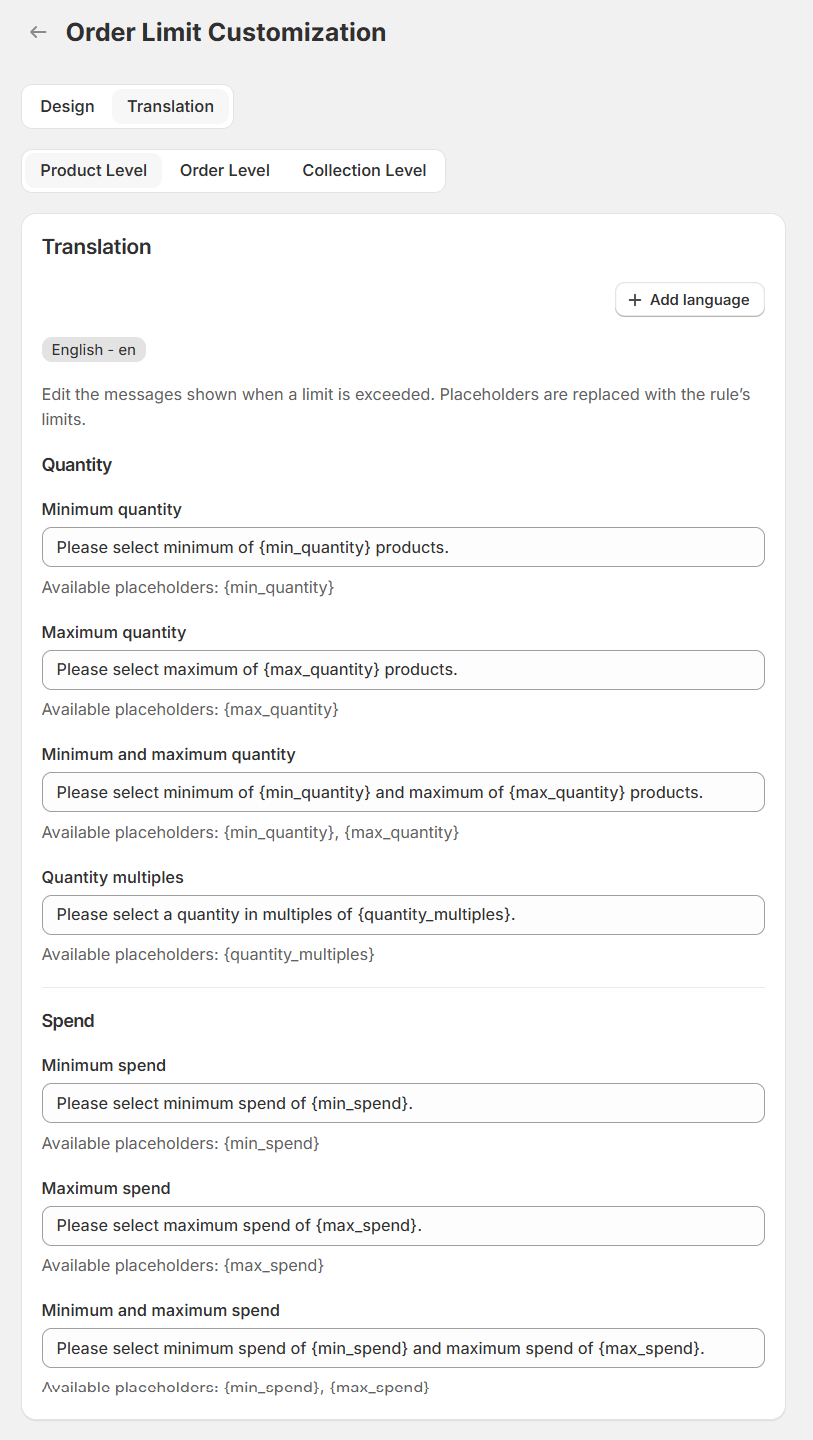
Open Translation, then choose the level you want to edit: Product Level, Order Level, or Collection Level.
Select a language, or click Add language to add another. Enter your own wording for the selected level and language.
Quantity messages
The Product Level example includes messages for:
- Minimum quantity: keep
{min_quantity}where the minimum should appear. - Maximum quantity: keep
{max_quantity}where the maximum should appear. - Minimum and maximum quantity: include both
{min_quantity}and{max_quantity}. - Quantity multiples: keep
{quantity_multiples}for the required increment.
For example, Please buy in multiples of {quantity_multiples}. can display Please buy in multiples of 2. when the rule requires increments of 2.
Spend messages
- Minimum spend: keep
{min_spend}for the minimum amount. - Maximum spend: keep
{max_spend}for the maximum amount. - Minimum and maximum spend: include both
{min_spend}and{max_spend}.
Lumi replaces the placeholders with the rule’s limits. Keep their spelling and braces unchanged, and use the available placeholders listed beneath each field. Repeat for the other levels and languages you need.
4. Save your changes
Click Save to apply your customization.
To change the limits or eligible customers, edit the order limit rule itself.