
How to customize price list
Style your wholesale prices, show a savings badge, and translate the labels customers see.
1. Open Customization
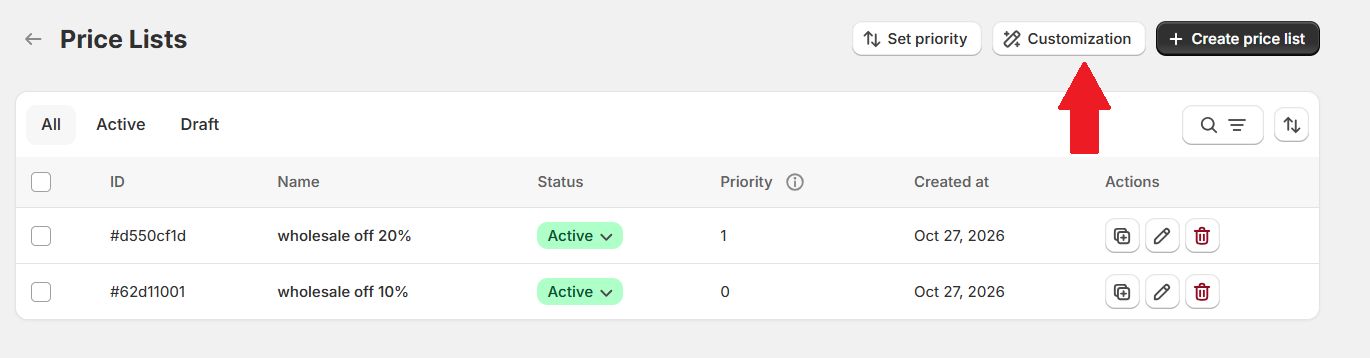
Go to Pricing Management Price Lists, then select Customization above the rules list.
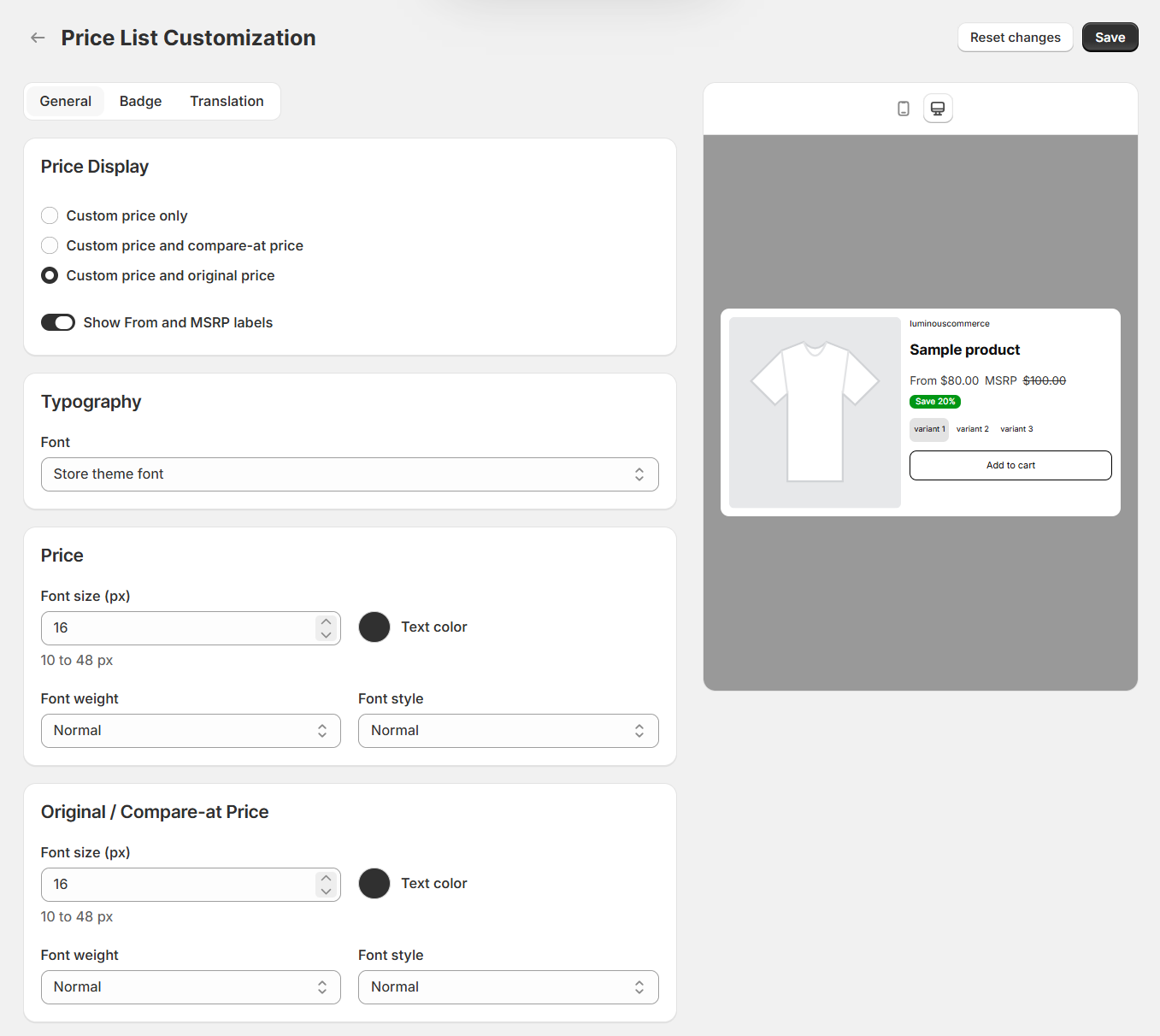
The editor has three tabs: General, Badge, and Translation. Use the preview beside the settings to see how your changes look.
2. Style prices in General
Choose what to display
Under Price Display, select one of these options:
- Custom price only: shows the customer’s custom price on its own.
- Custom price and compare-at price: shows the custom price alongside the compare-at price.
- Custom price and original price: shows the custom price alongside the original price.
Use Show From and MSRP labels to choose whether those labels appear with the prices.
Match your storefront typography
In Typography, choose Store theme font to follow your theme, or select another available font.
The Price and Original / Compare-at Price panels each have their own styling controls:
- Font size (px): choose a size between 10 and 48 pixels.
- Text color: choose the color for that price.
- Font weight: adjust how bold the price appears.
- Font style: choose the available text style, such as normal or italic.
Keep the custom price prominent and the reference price easy to distinguish. The reference-price styling appears when your display option includes it.
3. Customize the savings badge
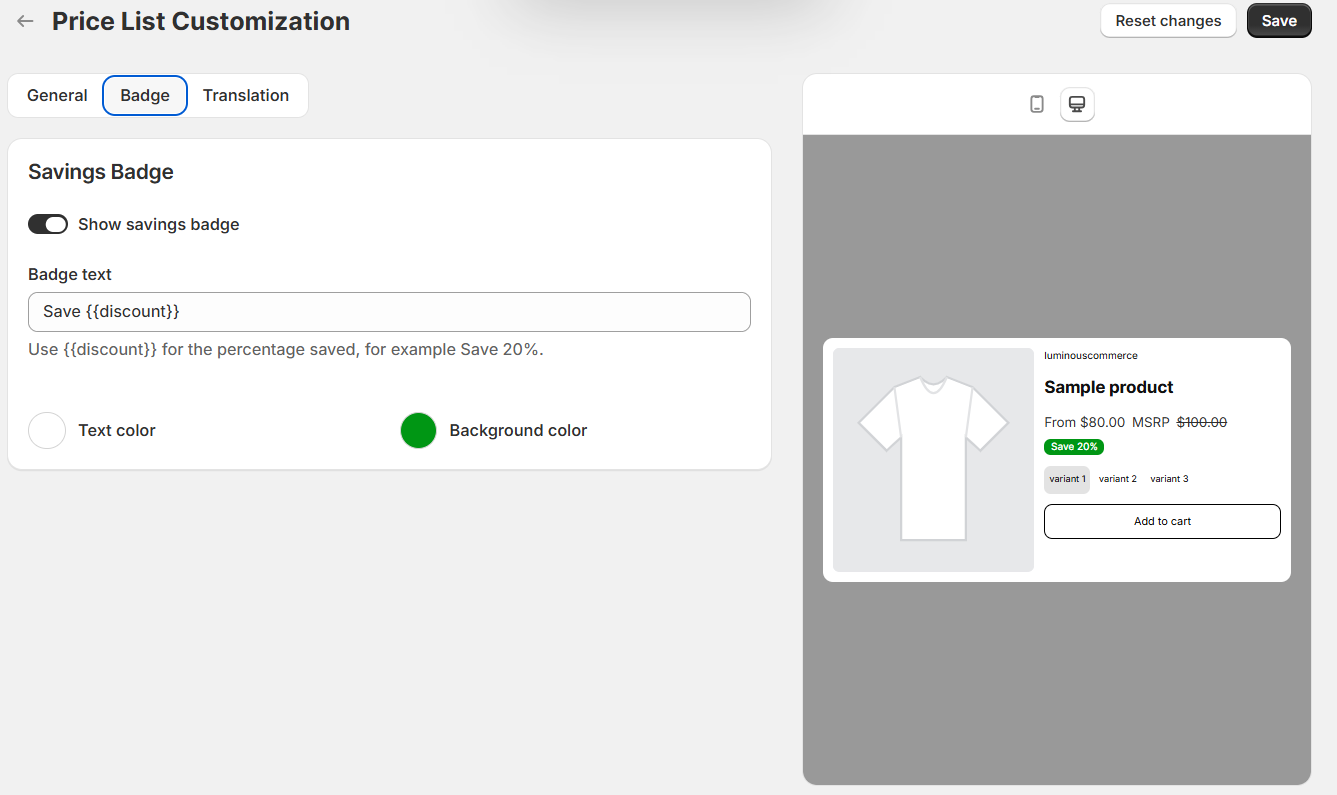
Open Badge and turn on Show savings badge if you want to display the percentage saved.
- Badge text: write the label shown with the discount. Keep
{{discount}}where you want the percentage to appear. For example,Save {{discount}}can display Save 20%. - Text color: set the color of the badge lettering.
- Background color: choose the color behind the text.
Use contrasting text and background colors so the savings remain readable. Turn the badge off if you prefer to show only the price.
4. Translate the labels
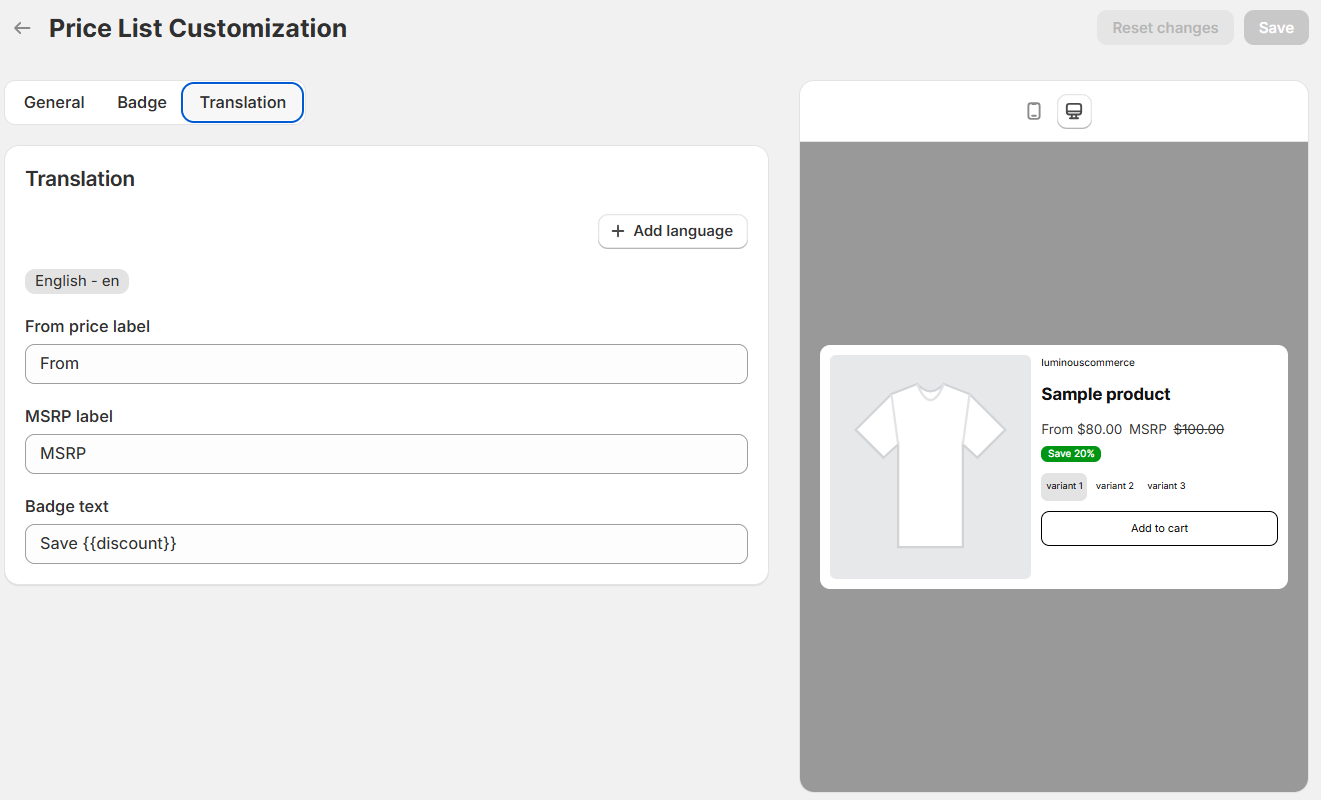
Open Translation. Select the language chip you want to edit, or choose Add language to add another language.
Update the labels for the selected language:
- From price label: the text used before a starting price.
- MSRP label: the label shown with the reference price when enabled.
- Badge text: the savings message. Keep
{{discount}}in the translated text so Lumi can insert the percentage.
Repeat for each language you want to provide. Enter your own translations in these fields.
5. Save your changes
Click Save to apply your customization. Reset changes discards unsaved edits.
These controls change the appearance of Price List. To change the discount amount or eligible customers, edit the price list itself.